Export OneDrive Files While Keeping Their Folders
Prepare an authorized OneDrive export, choose local output and verify files saved by Note.
Note exports files from OneDrive accounts you own or are authorized to access into local folders. It preserves the remote folder structure and provides file and account outcomes for review. Define the export scope before starting a large operation.
This is a file export workflow. A completed selected export does not establish continuous synchronization or preservation of every kind of account metadata.
Define the export scope
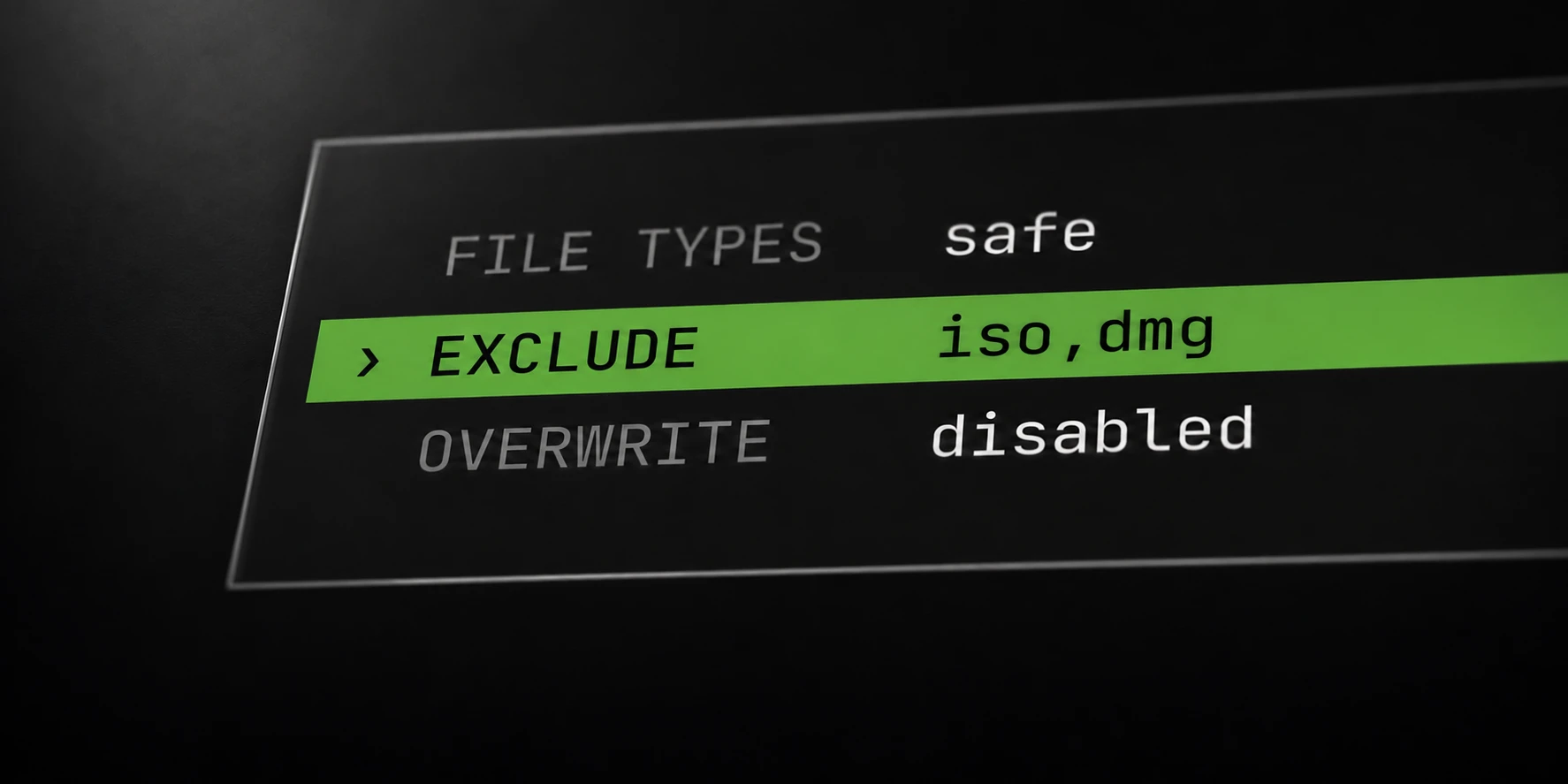
Choose the remote folder you need and the file categories you intend to save. Note’s default remote folder is the root. Extension, size and exclusion settings can reduce the selected scope.
For example, an illustrative remote tree might contain:
Documents/
  report.pdf
  drafts/
    notes.txt
Photos/
  example.jpg
An export of Documents should be evaluated against that folder’s selected contents, not against the Photos folder. Within the destination, retain the account and folder context when inspecting files with identical names.
Prepare the supported account input format and keep it local. Start with one known account and a small source folder so authentication, selection and destination behavior can be checked separately before using multiple accounts.
Prepare the local destination
Select a local output location with enough free space for the files you intend to export. Record the source folder, file filters, maximum size and overwrite setting with the operation.
Overwrite is off by default. Existing destination files can therefore be skipped. An unchanged local file is not proof that a new download occurred during the current run.
Note streams a download to a temporary file, verifies the final byte count and then saves the completed destination file. Completed downloads survive an immediate exit; partial downloads are discarded rather than presented as complete files.
Authentication and file downloads can use separately configured proxy lists. A blank download proxy list reuses the first list. Review that configuration before attributing a connection issue to the source account.
Review completed and skipped files
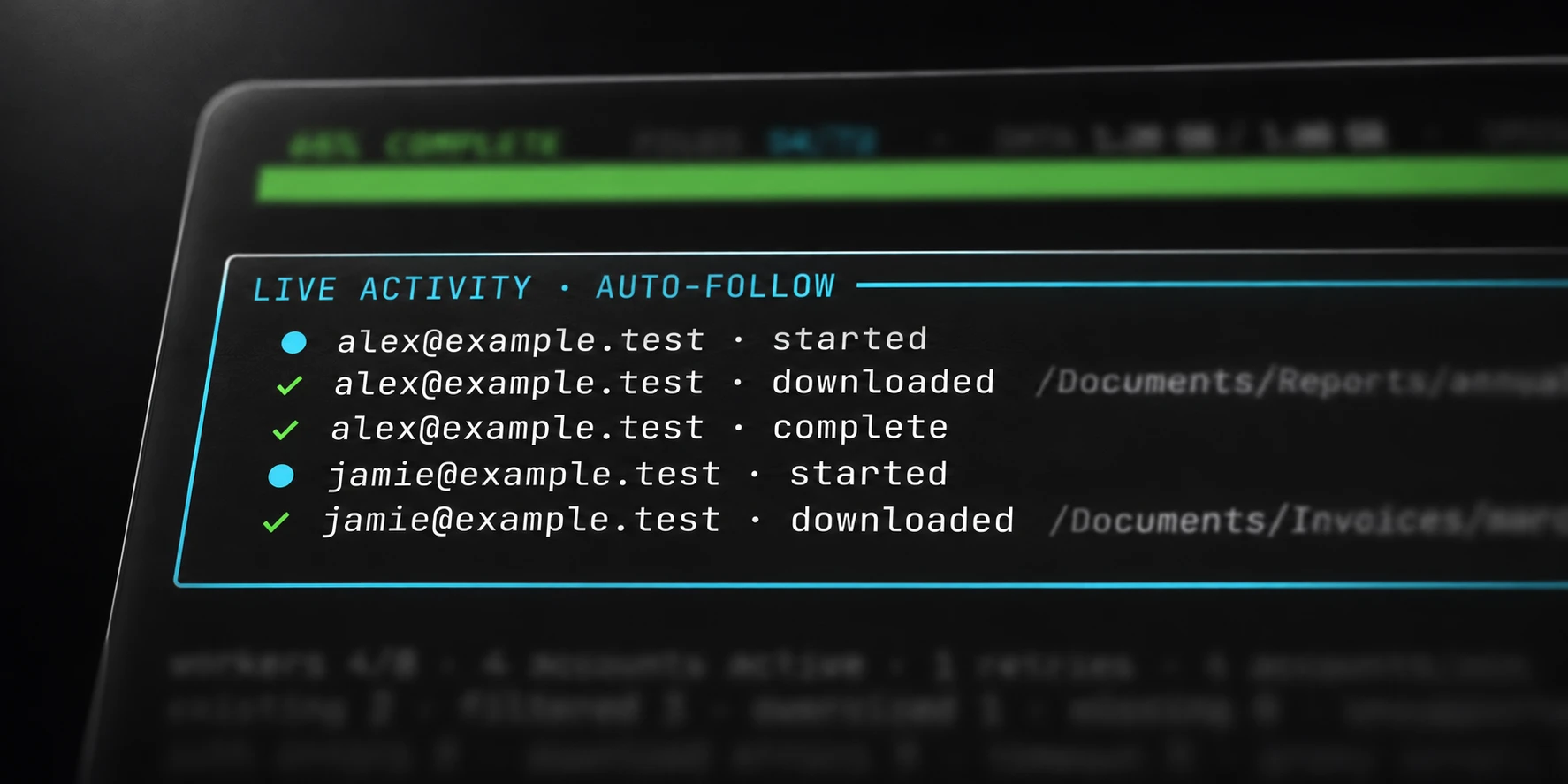
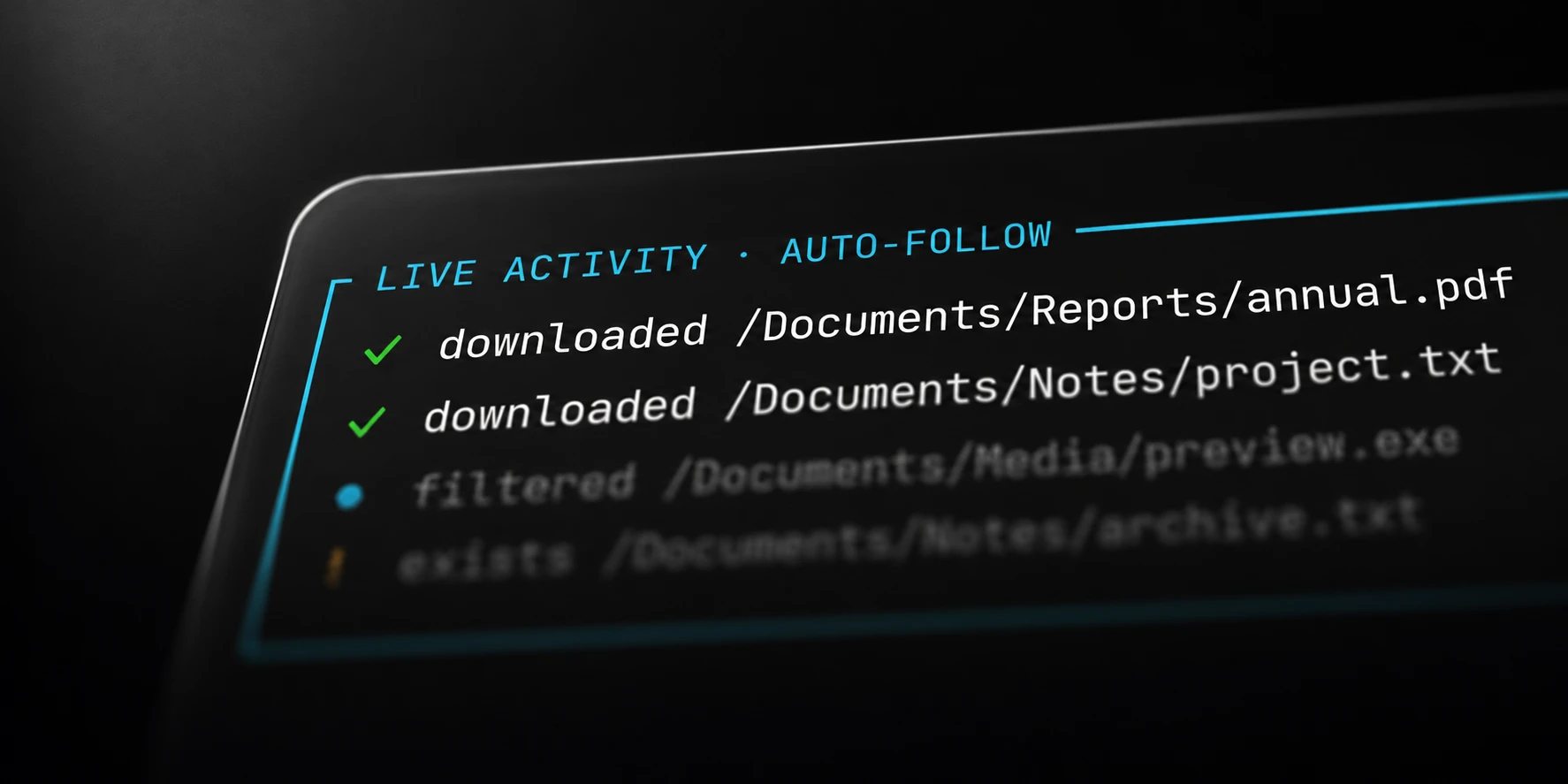
Inspect representative completed files and their folder placement. Then review counts for skipped, missing, filtered, oversized and unsupported files. Each category explains a different part of the selected scope.
A file excluded by configuration is different from a failed download. An account that requires verification is different from rejected credentials. Preserve these distinctions when planning a retry or reporting the export’s coverage.
If the operation was cancelled, retain the completed files and its partial completion context. Do not label the whole source folder exported solely because some destination files exist.
The related filtering guide explains which files are selected before downloading. The Note documentation lists input formats, blocked extensions, output categories and terminal controls.