Export Multiple Authorized OneDrive Accounts With Separate Output
Prepare account input, verify one export and review per-account outcomes before running a larger selection.
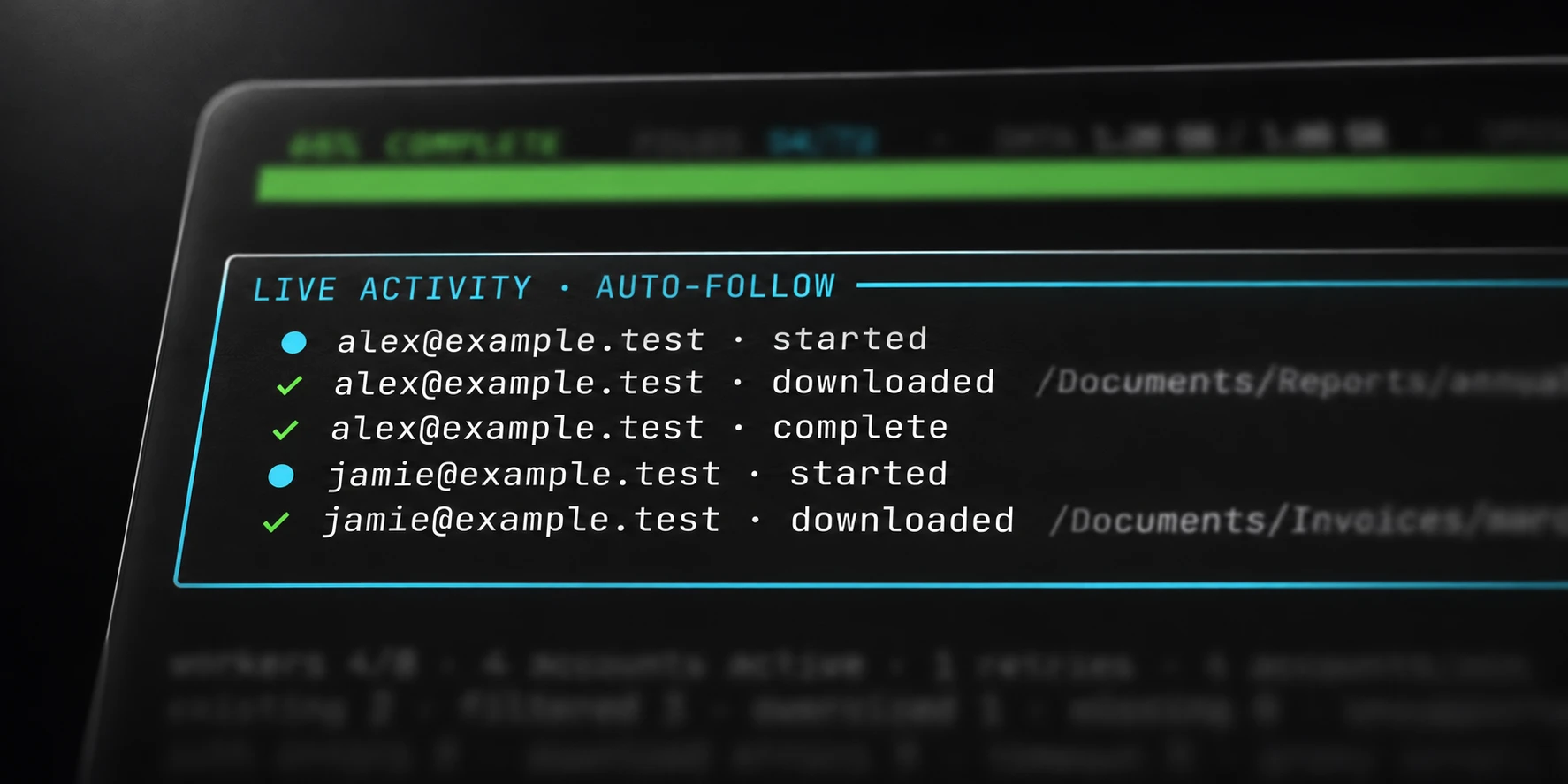
Before exporting several OneDrive accounts, verify the workflow with one authorized account. Then expand the selection while preserving each account’s folder and result context.
Note is a terminal application that exports files locally. It keeps account outcomes distinct from file-download outcomes so a partial batch can be reviewed deliberately.
Prepare the authorized account list
Use a supported UTF-8 input format. Note accepts credential rows and a JSON object with the documented login and password fields. Keep the input file private.
These two illustrative rows show separate account entries:
[email protected]:example-password-one
[email protected]:example-password-two
They are synthetic and cannot authenticate real OneDrive accounts. Do not reuse public examples as a place to collect or disclose actual credentials.
Blank and malformed rows are skipped, and a run needs at least one valid input row to start. Review your sample before assuming every source line became an account attempt.
Verify one account and destination
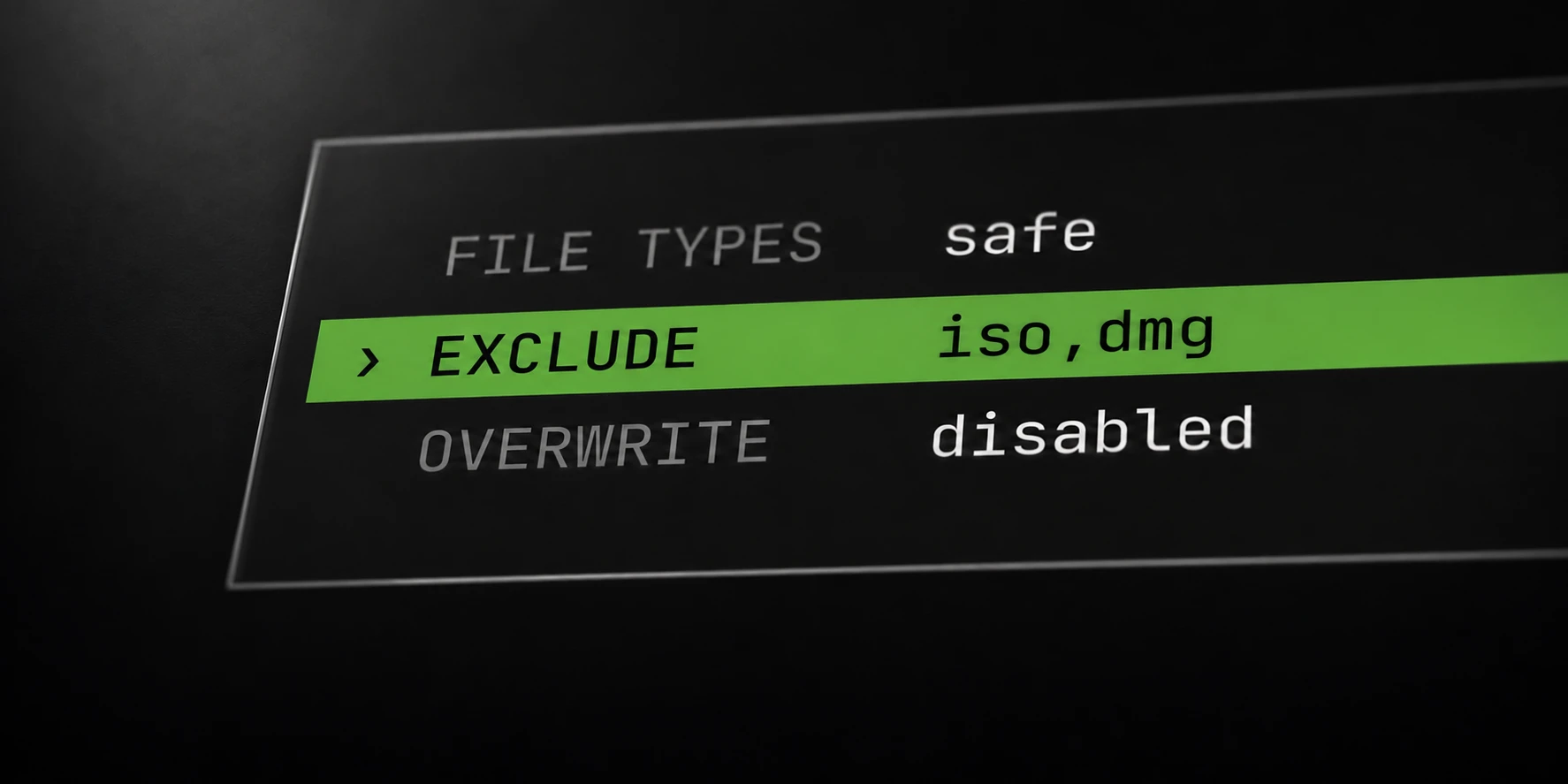
Choose the remote folder and a local output location with enough free space. Record extension, size, exclusion and overwrite settings with the operation.
Inspect one completed export for the expected account and remote folder hierarchy. Files with the same basename in different accounts need their account context preserved.
If the account requires verification or another action, resolve the account’s reported state rather than interpreting it as a complete file export. A connection failure also does not establish that credentials were rejected.
Authentication and download traffic can use separately configured proxy lists. A blank download list reuses the primary list. Confirm this behavior in the initial setup rather than changing several network settings during a larger run.
Review each account after the run
Increase the selection after the single-account workflow is understood. Note supports up to 5,000 accounts under its current plan contract; the website owns available purchase terms.
Review success, invalid, verification, locked and technical-error outcomes separately. A batch containing completed accounts can still include unresolved accounts.
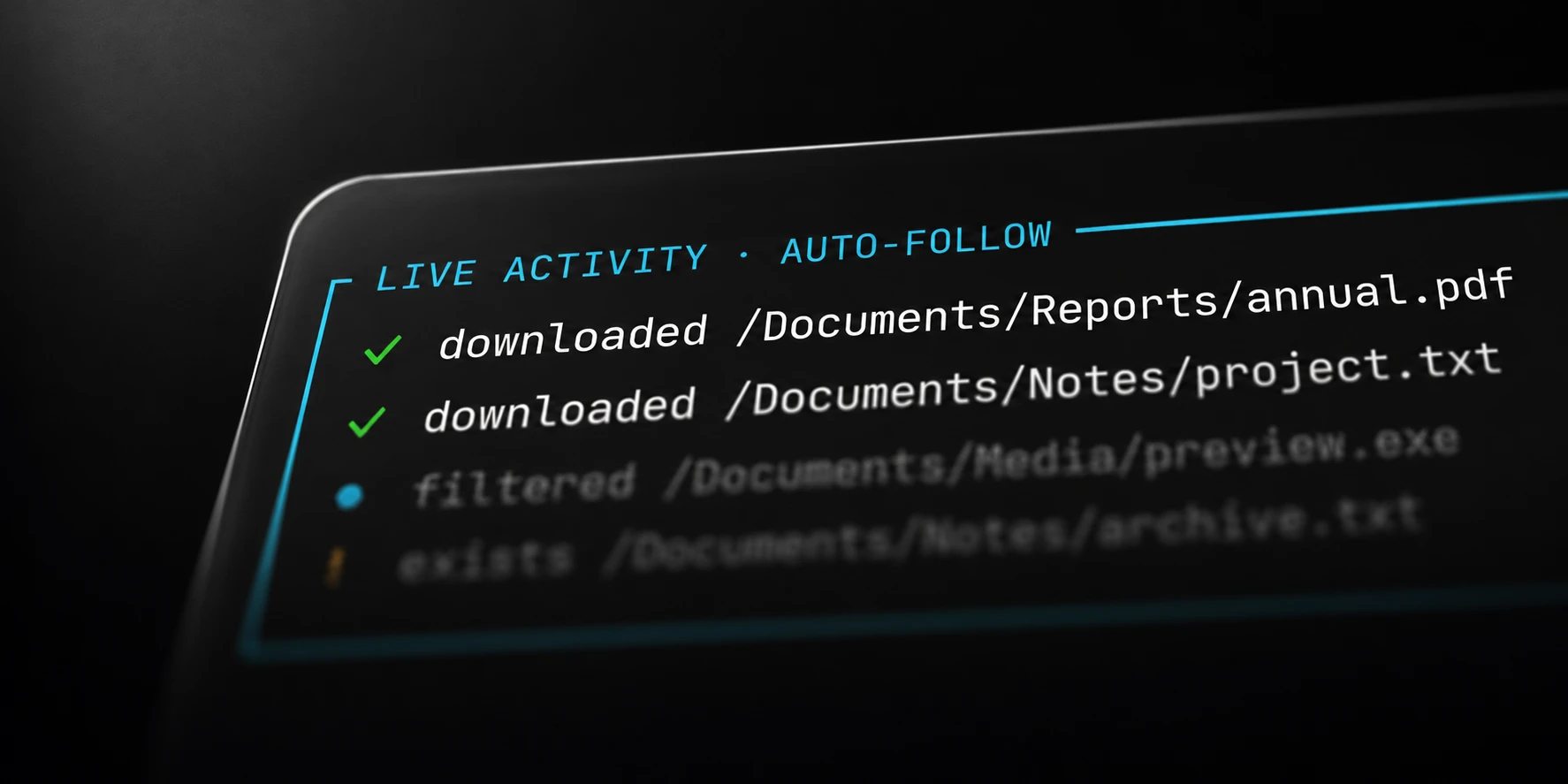
Within completed account scopes, inspect skipped, filtered, oversized and missing files. Those categories can explain why a selected source contains more items than the local output.
Completed downloads receive their final filenames after byte-count verification. Partial downloads are discarded. Preserve the completion context when cancelling or retrying a batch.
Use the folder guide to review the destination layout and the filter guide to explain selection. Keep a deliberate list of unresolved accounts rather than repeatedly exporting the full selection.