Find Complete Recovery Phrases in Your Own Backups
Scope a Seed scan of your own files and review complete phrase candidates with their source locations.
Seed scans your own local files for complete recovery phrases and recognized private-key formats. It reports candidates with source information so you can review what was found. It does not reconstruct missing words or establish whether a wallet contains funds.
Start with a folder you own and understand. A focused scan makes it easier to explain both the findings and the sources that were skipped.
Choose a known local source
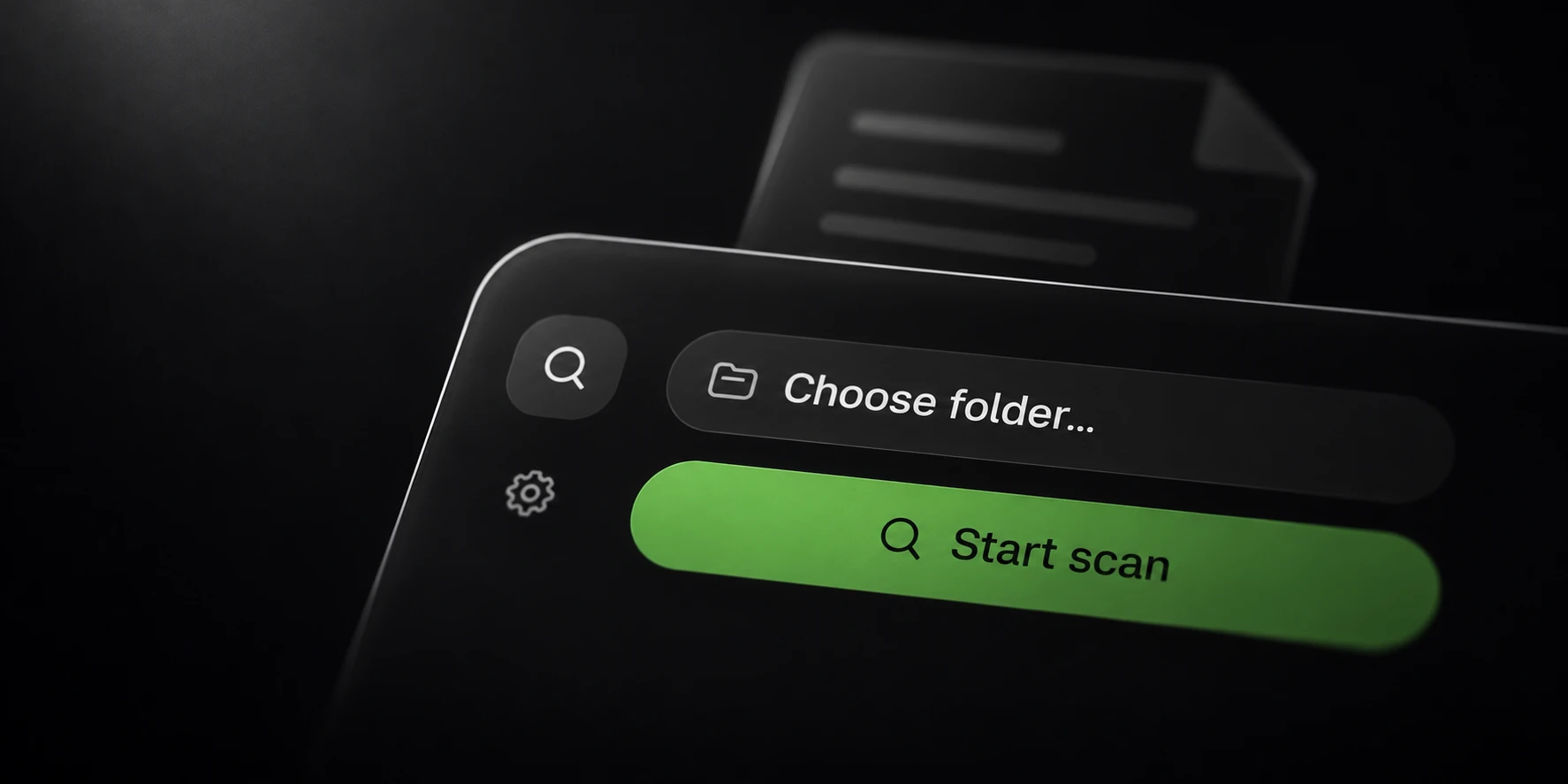
Choose one source folder and a separate local output location. Review excluded paths and file categories before starting. Keep enough space for reports and avoid sharing scan output.
Text and wallet categories are enabled by default. Documents, ZIP archives and image OCR have separate options. A scan of enabled text files should not be described as a scan of every item in a backup containing documents and images.
Use a small non-sensitive fixture to verify the workflow. The BIP39 specification links public test vectors for mnemonic validation. Public test data is suitable for a demonstration; never copy a real recovery phrase into an article, issue or support message.
BIP39 includes a checksum. Passing that check is a format-level property, not evidence of ownership or a valuable account. Seed’s supported detection formats are listed in its product documentation.
Enable only the sources you need
Document scanning is optional. When enabled, Seed supports PDF, DOCX, XLSX and XLSM within its document extraction limits. An unreadable or oversized document cannot establish that no phrase is present.
ZIP scanning is also optional, with entry and nesting limits. A backup containing nested archives can therefore include material outside a particular run’s configured coverage.
Image OCR is off by default. Enabling it sends selected supported images to hosted processing through the Krantz API. Other scanning stays local. Review that data flow before including images from a sensitive backup.
Keep the original backup intact. Change one source category or limit at a time during evaluation so a different result can be tied to a known configuration change.
Review candidates in their original context
Review the reported source path and line when available. Similar-looking text in a sample, template or unrelated document may not be the material you were seeking.
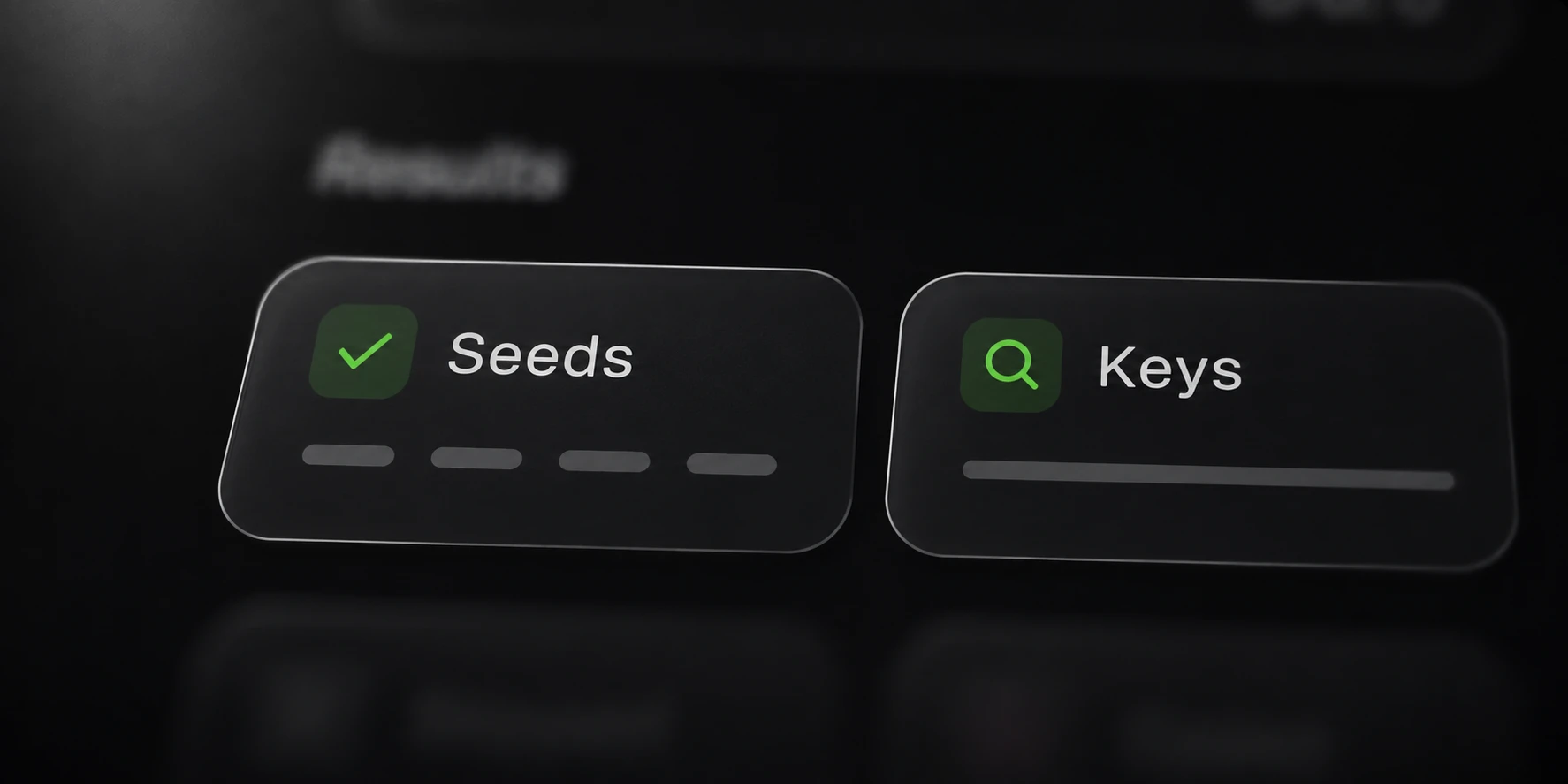
Identical phrases and keys are published once per run. Repeated appearances in several files should therefore not be interpreted simply from the number of result lines.
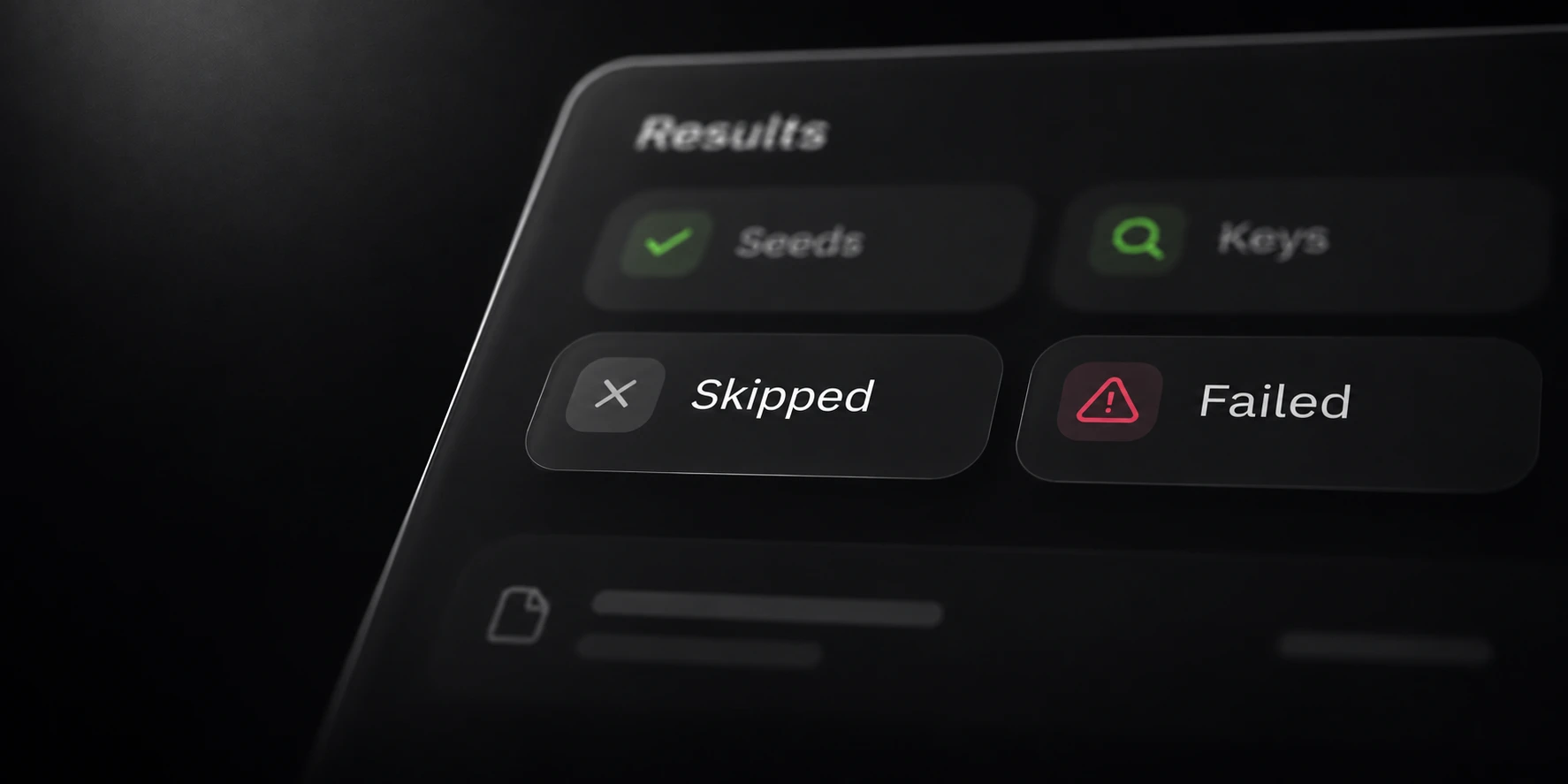
Read the file-status report alongside the findings. Excluded paths, unreadable files, disabled image processing and extraction limits all affect coverage. No findings in a partial scan does not prove that the entire backup lacks wallet material.
Keep raw findings private and examine them only in the appropriate authorized workflow. A public support description can use the file category and skip reason without including a phrase or key.
The related coverage guide explains candidate and skip categories. The documentation below lists supported formats, defaults, archive limits and the files written by each scan.