Outlook and Hotmail Account Checker
Evaluate bulk Outlook and Hotmail login checking in Mail: native authentication, completed access, clear result categories and local exports.
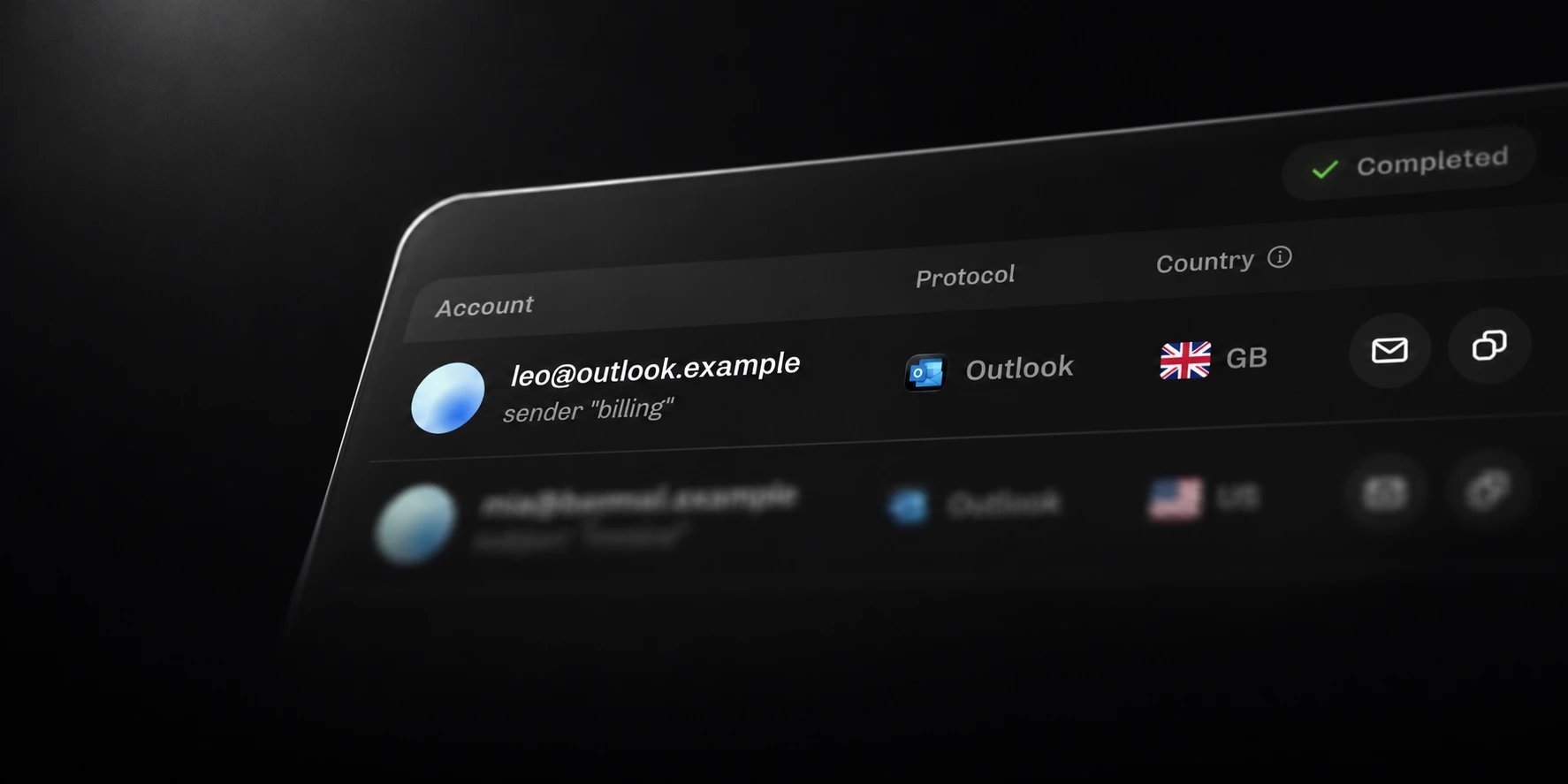
An Outlook and Hotmail account checker should establish whether the supplied login completes and give a clear reason when it does not. For a bulk list, that means separating working sign-ins from rejected credentials, verification requirements, locked accounts and technical failures you may need to investigate.
Mail provides native Outlook checking, with configurable parallel work, local History and separate result files. Here is what to evaluate when your authorized account list includes Outlook or Hotmail.
What the checker verifies
Hotmail accounts use Microsoft’s Outlook.com sign-in service, as Microsoft explains in its Hotmail sign-in guidance. The account domain identifies part of your list; a checking result still needs to establish what happened during authentication.
In Mail, Outlook Success requires a completed authentication flow with an access token. An accepted password followed by an unfinished flow does not qualify. Cookies saved during a failed or incomplete attempt also do not establish successful access.
That gives you a concrete question to ask of any Outlook checker: what evidence must exist before the software writes the account to its successful results? Look for an answer you can evaluate against known accounts, rather than relying on a generic “valid” label.
Use the Outlook checking method
Select Outlook in Mail’s Checking methods for the native workflow. Pro includes Outlook alongside the other supported native methods. When selected, native methods run ahead of standard routes.
Microsoft documents modern authentication requirements for Outlook.com. Check the exact method supported by a product when comparing software. A provider name on a feature list does not describe how authentication completes.
This article covers consumer Outlook.com and Hotmail account checking. Do not infer support for every work or school Microsoft 365 tenant from a successful consumer-account check; those accounts can have different organizational requirements.
Prepare an Outlook or Hotmail run
Begin with a small authorized sample whose current outcomes you can independently establish.
Use Mail’s supported UTF-8 input format, with one email:password or email;password row per
account, and preserve the original file.
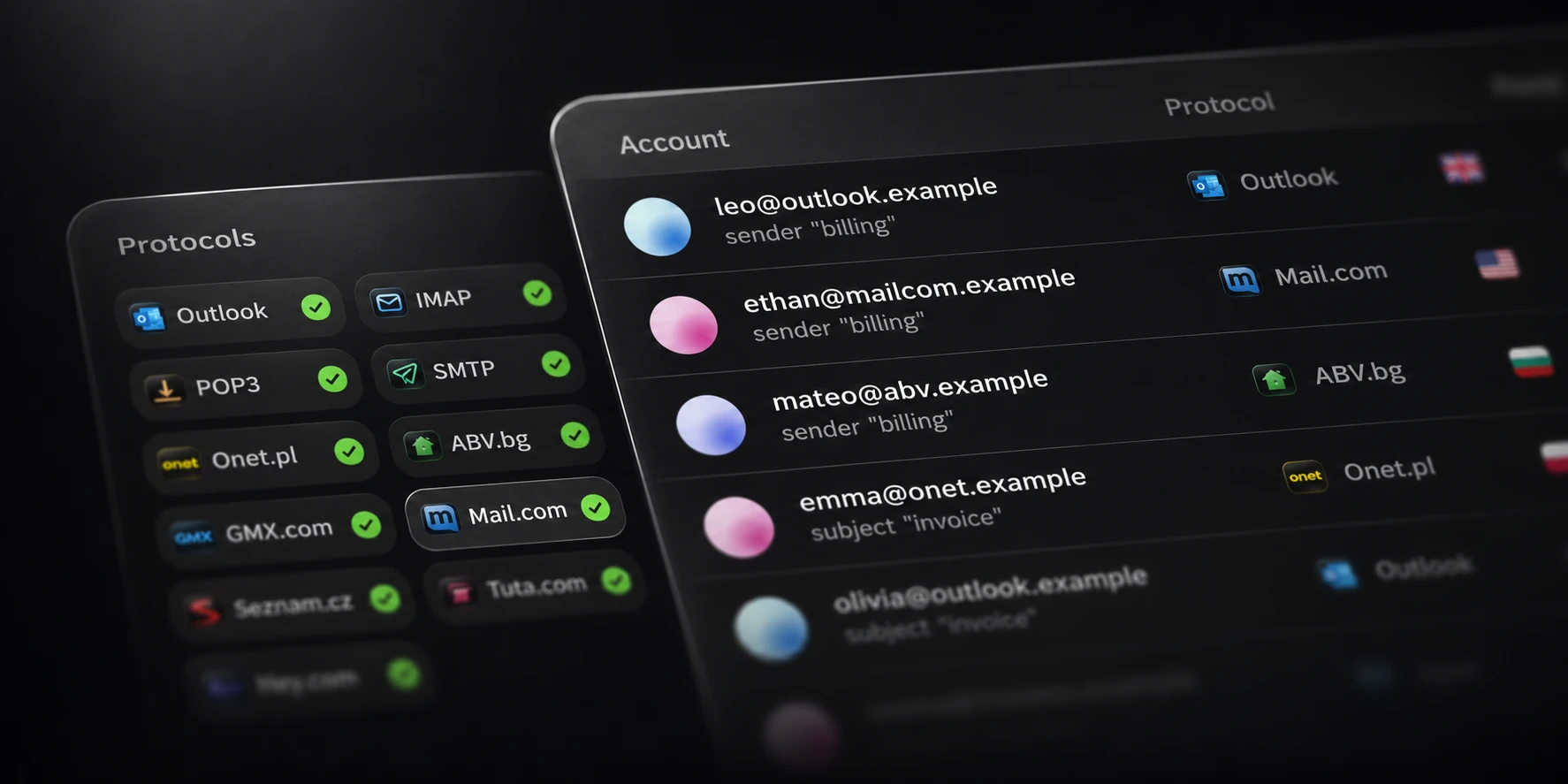
Choose the Outlook method, thread count, timeout and retry settings deliberately. Keep a record of them when you compare runs. For a mixed list, leave the other intended provider methods selected as well and inspect the method reported for each account.
Decide whether to save optional session material before starting. Mail’s cookie saving follows the selected result statuses; an empty status selection exports no cookies. Keep account files, result files and any saved sessions private.

Read the account outcomes
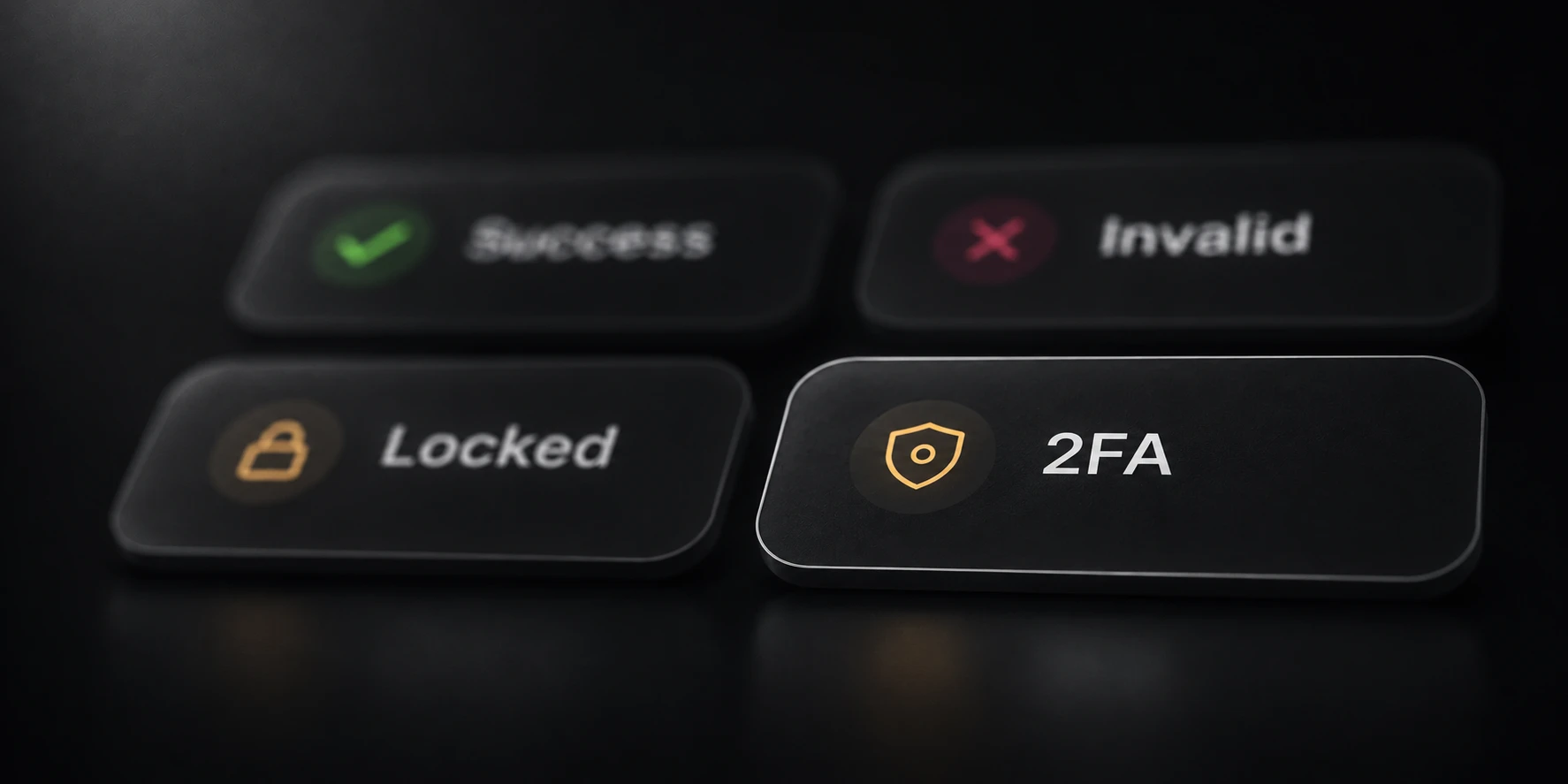
Success, Invalid, 2FA required and Locked describe different outcomes. A provider requirement should remain visible instead of being folded into a generic failed-login count.
Technical failures need their own review. If an Outlook attempt times out or cannot complete token issuance, the check has not established completed access. Read the original Details before building another account list from those rows.
Mail keeps local History and separates successful, invalid, account-action and error output. Compare those files with the visible results during your evaluation. A usable bulk checker should leave you able to explain why each group exists.
Evaluate the checker for your list
Test more than an already-working account. Include known outcomes that represent the accounts you actually manage, and record any unresolved checks separately. Use the same conditions when comparing checking speed and classifications.
Mail Pro has no fixed input byte limit and supports up to 5,000 threads. Input needs temporary disk space; useful concurrency depends on the connection and the provider’s response to the workload.
Review current requirements and plans on the Mail product page. For an Outlook or Hotmail list, the most useful result is completed access you can distinguish from verification, rejection and unfinished checking.